
Streaming enthusiasts looking to maximize their television viewing experience regularly choose Amazon FireStick hardware for its performance and flexibility. To transform this streaming media stick into a reliable home theater hub, learning how to setup IPTV Smarters Pro represents the standard approach in 2026. IPTV Smarters Pro is an independent, advanced media player application engineered to organize live television broadcasts, movies on demand, and catch-up series through an intuitive layout. Because it functions strictly as a playback interface, users connect their own subscription credentials to access indexed streams with low latency.
In this practical engineering walkthrough, you will learn the exact steps required to prepare Fire OS, install the verified application package, authenticate your connection using Xtream Codes API credentials, and optimize playback buffer parameters for smooth high-definition viewing. Whether you operate a Fire TV Stick 4K Max, standard Fire TV Stick, or Fire TV Cube, this guide covers the current settings menu architecture to ensure complete hardware compatibility without unnecessary complications.
Prerequisites to Setup IPTV Smarters Pro on FireStick (Fire OS)
Before initiating the application download, your Fire TV device requires specific system settings adjustments. Amazon updated recent versions of Fire OS (specifically Fire OS 7 and Fire OS 8) to hide advanced configuration menus from standard navigation. Preparing your streaming media player requires unhiding the developer settings and authorizing the installation utility.
Unlocking Developer Options on Modern Fire OS Devices
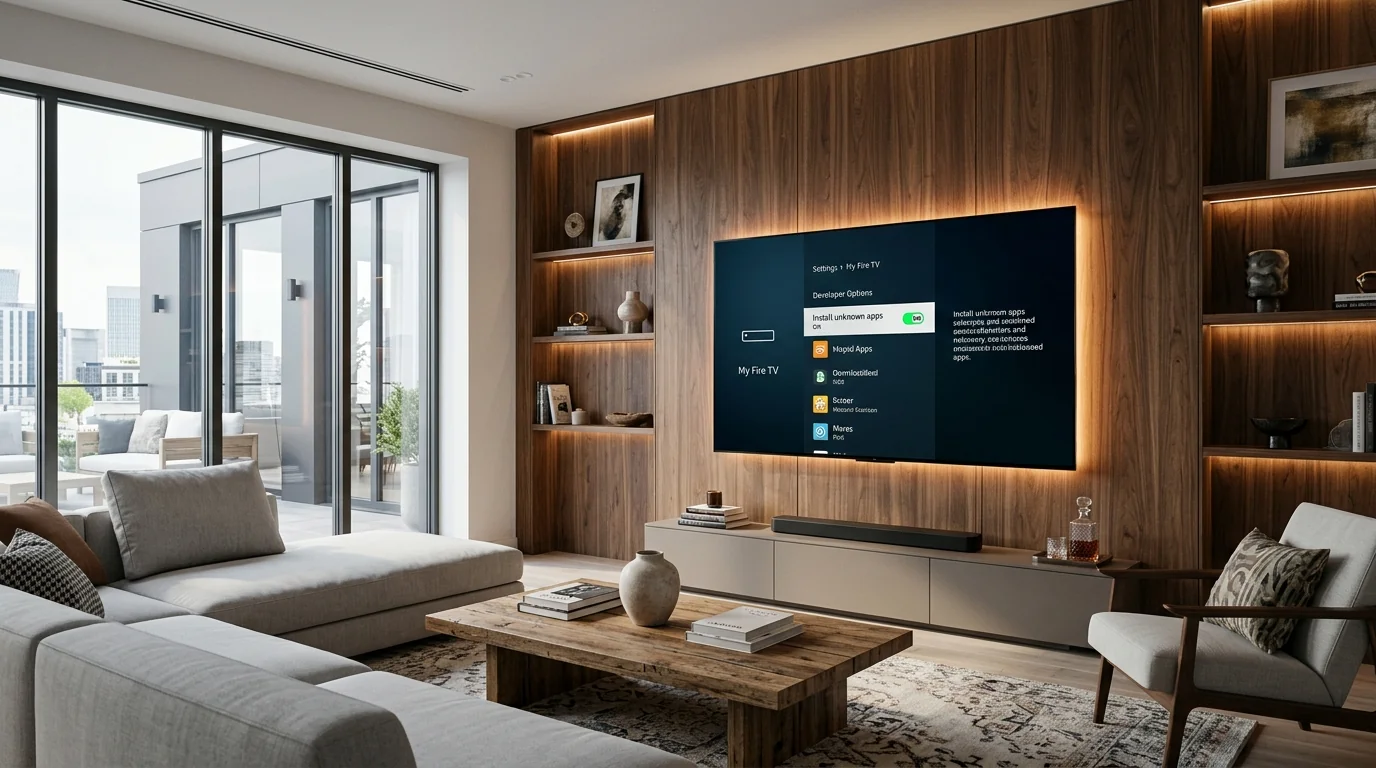
On factory-fresh devices or recently updated hardware, the Developer Options submenu is concealed by default. To make this menu visible, navigate to Settings from the Fire TV home ribbon, select My Fire TV, and click on About. Highlight the primary device name (such as Fire TV Stick 4K Max) and click the center remote button seven consecutive times. A notification message will appear on the bottom of the screen stating that you are now a developer.
Ready for Buffer-Free 4K Streaming on Kevin IPTV? 📺
Access 16,500+ live 4K/60FPS channels, premium sports (UFC, Champions League, NFL), and 150,000+ VOD movies on Firestick, Smart TV, Android & iOS with zero buffering.
After revealing this menu, press the back button on your Alexa voice remote and select Developer Options. Inside this screen, locate the toggle for Install Unknown Apps or Apps from Unknown Sources. Keeping this setting accessible ensures that your streaming hardware can process authorized APK packages outside the standard retail catalog. For additional technical background on operating system flags, consult the Amazon Fire TV developer documentation.
Installing the Official Downloader Utility Application
The standard Fire OS operating system does not include a direct browser download manager in its default state. To retrieve the application package, you need the official Downloader utility created by AFTVnews. Return to the Find icon on your home screen, choose Search, and enter Downloader into the query field.
Select the orange Downloader icon from the search results, click Download or Get, and permit the application to install. Once installed, launch Downloader and immediately grant it storage permissions when prompted. Next, revisit Settings, open My Fire TV, select Developer Options, click Install Unknown Apps, and verify that Downloader is switched to the ON position. This authorization allows the utility to unpack installation archives directly to internal storage.
Step-by-Step Instructions to Setup IPTV Smarters Pro on FireStick
With the operating environment prepared and proper storage permissions granted, you can proceed to download and setup IPTV Smarters Pro on your Amazon streaming device. Following these sequential steps guarantees a clean installation without corrupt binaries or orphaned data blocks.
Download and Install IPTV Smarters Pro FireStick Package
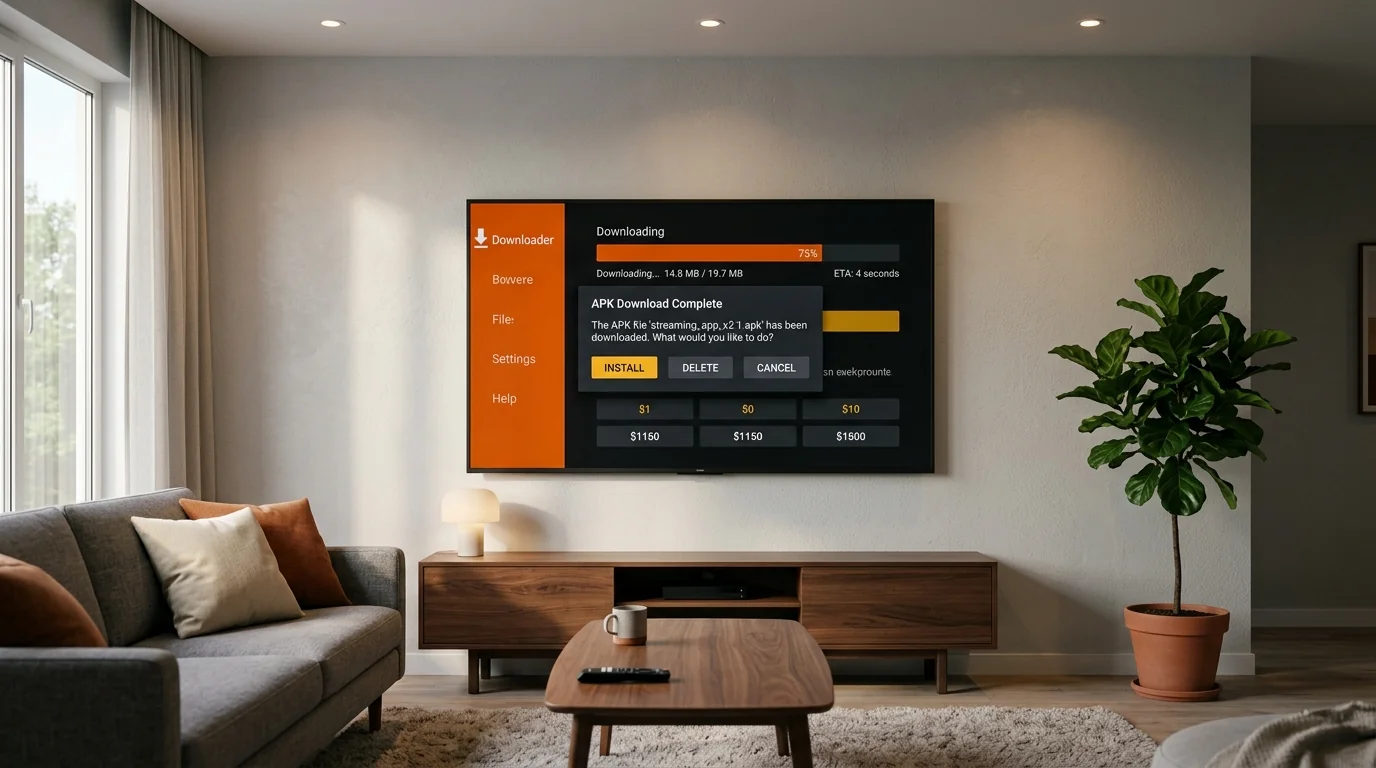
Launch the Downloader application from your Apps library. On the primary Home tab, an address bar labeled Enter a URL or Search Term appears in the center of the viewport. Click inside the URL bar to bring up the on-screen digital keyboard. Enter the verified quick-download numeric shortcode or official APK repository URL for IPTV Smarters Pro and press Go.
The application downloader will immediately contact the distribution server and fetch the APK package, which measures approximately eighty megabytes. Once the download status completes, the Fire OS package installer will launch automatically. Review the requested permissions on the prompt window and click Install in the bottom right corner of the screen.
Completing the FireStick Package Installer Routine
The installation routine takes approximately fifteen to thirty seconds depending on your device processor. When the confirmation banner displays App Installed, do not immediately click Open. Instead, click Done to return to the Downloader application interface.
A prompt will appear asking whether you wish to keep or delete the downloaded APK installation file. Select Delete and confirm Delete a second time. Because streaming sticks operate with limited flash storage (typically eight to sixteen gigabytes), removing temporary installation archives conserves valuable space required for streaming cache and electronic program guide data. You can now press the Home button on your remote; the newly installed player is accessible from the Your Apps and Channels grid.
Configuring Xtream Codes API When You Setup IPTV Smarters Pro
Opening the application for the first time presents the primary layout options. The software prompts you to choose your interface style between TV and Mobile. Select TV for a remote-controlled display and click Save. Accept the end-user terms of service to proceed to the Add User dashboard.
Connecting via IPTV Smarters Xtream Codes API Protocol
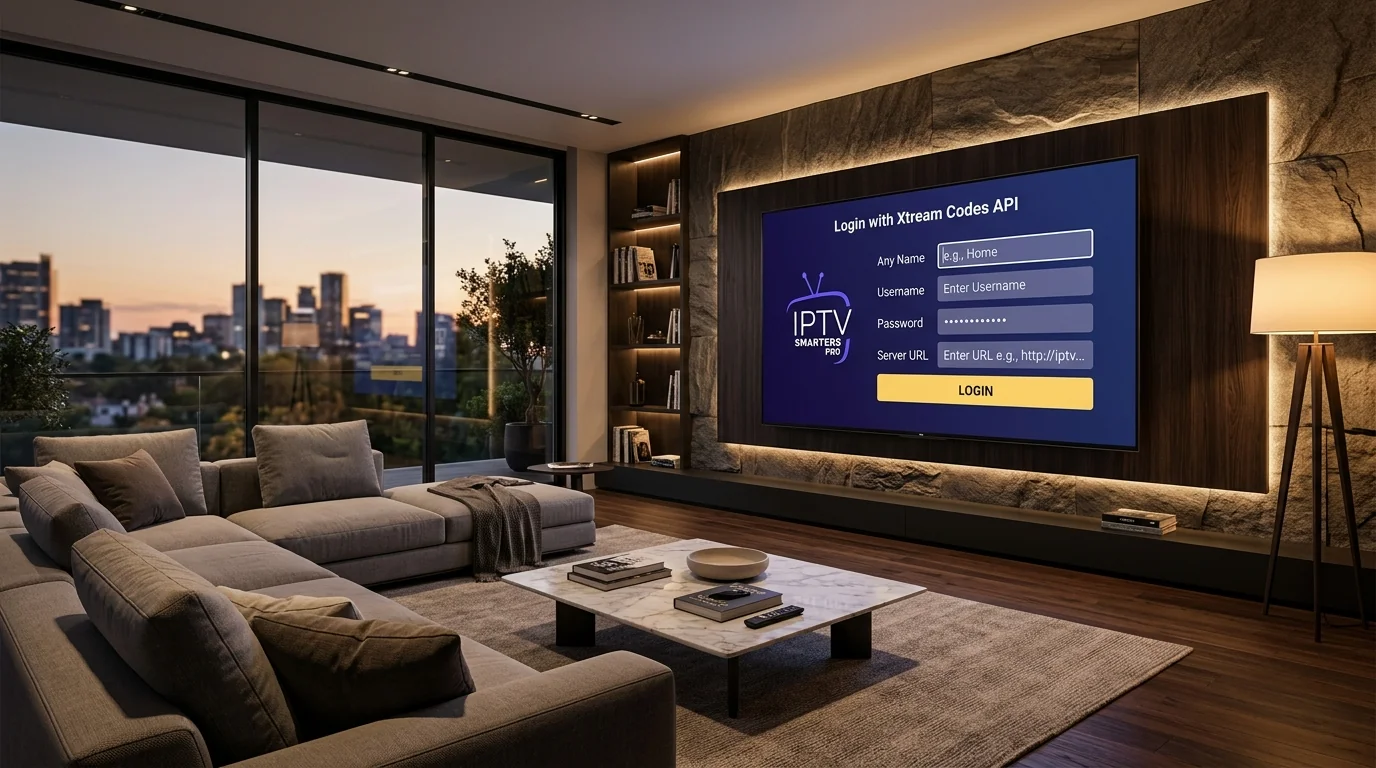
The application provides multiple authentication methods, primarily Load Your Playlist or File/URL (standard M3U) and Login with Xtream Codes API. We strongly recommend selecting Login with Xtream Codes API. Unlike static playlist links that demand manual refreshes, the Xtream Codes protocol delivers dynamic category indexing, automated video on demand categorization, and native server-side electronic program guide integration.
On the login screen, enter your designated credentials into the four visible text fields: 1. Any Name: Enter an identifiable label for your connection, such as Kevin IPTV. 2. Username: Enter the specific account username provided in your activation confirmation. 3. Password: Enter the unique connection password assigned to your line. 4. Server URL: Enter the complete domain address and port provided by your service operator.
Ensure that the Server URL begins with the appropriate protocol prefix (http:// or https://) without trailing spaces or typographical errors. If you require verified credentials, you can review available Kevin IPTV subscription packages or test connection responsiveness using 24-hour IPTV trial access. Click Add User to initiate the server handshake. The player will download live channels, series lists, and program guide data into its local database.
Optimizing Fire TV Stick Streaming Setup Settings
Once your account profile loads, taking a few moments to adjust internal playback parameters significantly improves daily reliability. From the application home dashboard, click on the Settings gear icon located in the upper right quadrant.
First, navigate to Player Selection. By default, the software assigns Built-in Player to all media categories. For live television broadcasts, verify that the built-in ExoPlayer remains active, as it offers superior hardware decoding across Fire OS chipsets. Next, open Stream Format and switch the selection from default to MPEGTS or HLS based on your internet connection stability. Finally, open Time Format to configure your regional clock display, ensuring your electronic program guide timeline aligns with local programming schedules. If you experience unexpected stuttering on high-bitrate live streams, consult our companion IPTV stream freezing and buffer fix tutorial or read our comprehensive Kevin IPTV platform features and review to evaluate server routing performance.
Troubleshooting Issues When You Setup IPTV Smarters Pro on FireStick
Even with an optimal setup iptv smarters pro installation, occasional network bottlenecks, authentication discrepancies, or audio decoding errors may arise. Applying the following diagnostic methods resolves the majority of operational interruptions quickly.
Resolving Invalid Details and Authorization 401 Errors
An Authorization Failed or Invalid Details notification indicates that the application cannot complete the security handshake with the remote authentication server. The most common cause is a simple character omission in the password field or an extra space appended by Fire OS auto-suggest.
To correct this problem, return to the user selection screen, highlight your profile, press the menu button on your Fire TV remote, and select Edit. Re-enter the username and password with strict attention to uppercase and lowercase formatting. Additionally, verify that your account has not reached its concurrent connection ceiling. If your active plan allows one simultaneous connection, launching the player on a second television in your household will generate an authentication conflict. Always verify line status through your customer portal before modifying local network hardware.
Fixing Playback Buffering and Audio Desynchronization
When streaming high-definition sports or premium movies, buffering typically originates from local Wi-Fi packet degradation rather than server throughput. Because the 5 GHz wireless band provides higher bandwidth with less interference than 2.4 GHz frequencies, connect your Fire TV Stick to your router 5 GHz SSID whenever possible.
If video frames render smoothly while sound lags behind, open application Settings, navigate to Player Settings, and adjust the Hardware Decoder configuration. Switching from software decoding to hardware decoding offloads media decompression to the onboard graphical processing unit, resolving synchronization issues. In addition, clearing application cache periodically through Fire OS Settings > Applications > Manage Installed Applications > IPTV Smarters Pro > Clear Cache releases allocated memory blocks without deleting your saved login profiles.
Frequently Asked Questions: Setup IPTV Smarters Pro on FireStick (2026)
How do I install IPTV Smarters Pro on FireStick?
To install the application, first enable developer options in your Fire TV settings menu and authorize unknown app installation for Downloader. Then open Downloader, enter the verified package link, download the APK file, complete the package installer prompt, and remove the temporary setup file.
Is IPTV Smarters Pro available on the Amazon Appstore?
No, the application is not distributed directly on the official Amazon Appstore. Users must sideload the official APK package using the Downloader utility to run the player on Fire OS streaming devices.
How to login to IPTV Smarters Pro with Xtream Codes API?
Launch the player, choose the TV display mode, and select Login with Xtream Codes API. Fill in Any Name, your assigned Username, Password, and the complete Server URL with port provided in your service confirmation email, then click Add User.
Why is IPTV Smarters Pro showing an authorization failed error?
This error typically points to typographical errors in your account credentials, an expired subscription line, or exceeding the permitted simultaneous connection limit on your service plan. Check credential capitalization and server status to resolve the connection.
How do I enable Developer Options on newer FireStick 4K Max devices?
Open Settings, navigate to My Fire TV, choose About, and highlight your device model. Click the center remote button seven times until the screen indicates that you are a developer, then return to the previous screen to find the unlocked Developer Options submenu.
How can I fix buffering and audio sync issues in IPTV Smarters Pro?
Switch from 2.4 GHz Wi-Fi to a 5 GHz wireless frequency, change the stream container format to MPEGTS or HLS in app settings, enable hardware decoding in player settings, and clear temporary application cache via the Fire OS application management screen.
Can I record live TV and schedule reminders in IPTV Smarters Pro?
Yes, the application supports local recording functionality if your Fire TV has sufficient external storage connected via an OTG adapter cable. You can also set electronic program guide notifications directly from the channel grid.
What is the difference between M3U playlist URL and Xtream Codes login?
An M3U link loads raw channel streams as a single plain text file that requires manual refreshing. Xtream Codes API connects directly to the server database, allowing dynamic categorization, automated electronic program guide updates, and separated on-demand sections.
We do not host, store, stream, or re-transmit any media content or digital video files. All subscriptions provide software interface setup assistance, player app configuration, and middleware technical indexing for authorized external streams.